Screen Recorder - G1REC
- 4.7
- Rating
- 10.00M
- Installs
- Free
- Price

 Analysis by App-foxy
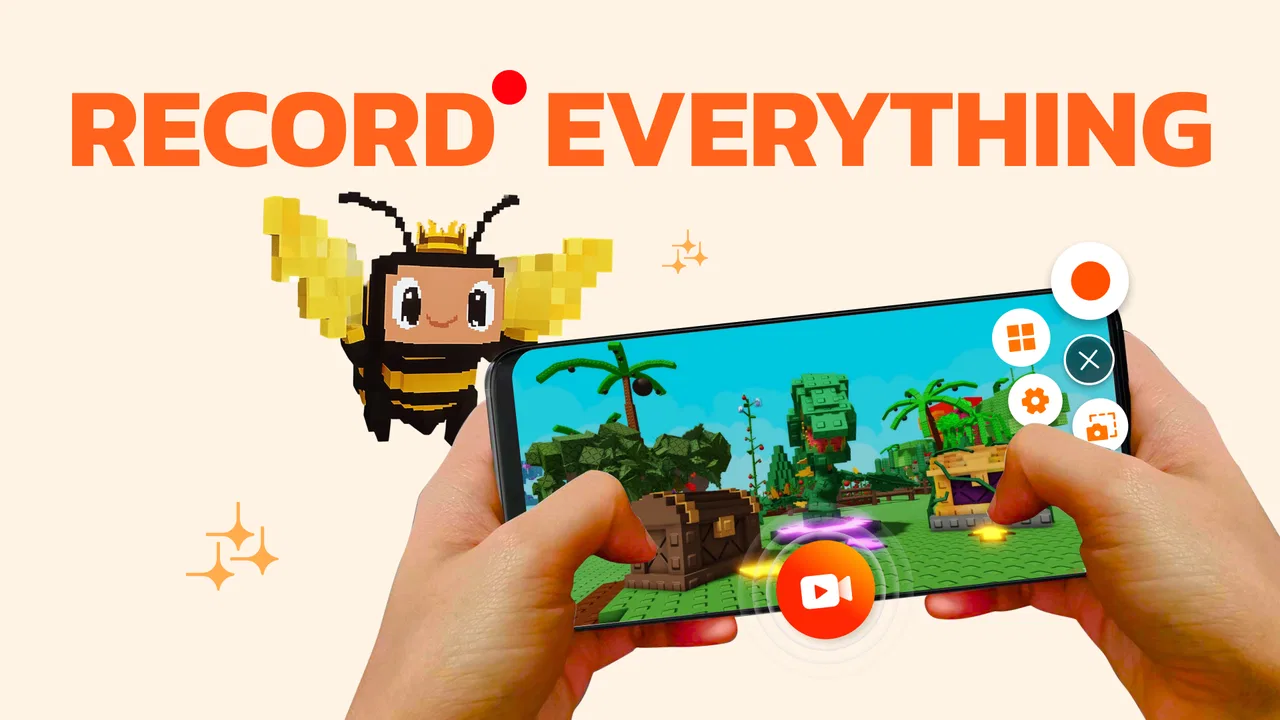
When I need to show someone what is happening on my phone, a screen recording is often more useful than a written explanation. That is where Screen Recorder - G1REC fits in. I tested it as a practical video tool rather than treating it as a simple capture button, and I found its main appeal in how quickly it turns an idea into something I can share: a gameplay moment, a walkthrough, a short demonstration, or a recording of another on-screen activity.
The app comes from Eco Mobile Editor and belongs to the video players and editors category. It is free to install, rated for everyone, and supports devices running Android 8.0 or later. Its current version is 3.5.7, while the app itself first appeared on September 18, 2018. Those details matter because this is not aimed only at professional creators; it is built for ordinary Android users who want a direct way to capture their screen without learning a complicated editing suite.
Its popularity is easy to understand. Screen Recorder - G1REC has passed 10 million installs and holds a 4.4 average from roughly 107 thousand ratings, with about 2.2 thousand written reviews. I would not treat popularity as proof that it is perfect, but it does suggest that the app has become a familiar choice for people who need quick screen capture on Android.
You May Also Like

 Blood Strike: 2.5 Anniversary
Blood Strike’s Loadouts Turn Every Drop Into a Tactical Gamble
A close look at Blood Strike’s custom loadouts: how fast access to signature weapons reshapes its battle royale rhythm, rewards preparation, and narrows the gap between fights.

 Pandora - Music & Podcasts
Pandora’s Music Is Easy to Start, but Harder to Recover
Pandora’s strength is its low-effort path from a seed to a station. Its weak spot is how much confidence it asks you to place in connection, setup, and quiet recovery.

 8 Ball Pool
 Is Built on Rivalries, Rematches, and Routine
A close look at the rivalries, rematches, shared routines, and unanswered safety questions that turn a quick pool match into a persistent mobile community.

 Samsung Music
’s Quiet Strength Is Playing What You Already Own
Its reach comes less from spectacle than from dependable access to a personal library. That simplicity is both the app’s strongest retention engine and its ceiling.

 AccuWeather: Weather Radar
AccuWeather Review: A Quick, Clear Forecast for Everyday Decisions
For everyday plans, the best forecast is the one you can understand quickly. AccuWeather makes rain timing, radar, and local conditions easy to act on, with a few trade-offs.

 Hill Climb Racing
Why Hill Climb Racing Still Turns Crashes Into One More Run
A tiny car, a bumpy hill and one more upgrade: Hill Climb Racing keeps resurfacing because its simple chaos makes every near-miss feel personal.
More From Our News Desk



Starting a recording without turning the idea into a project
The strongest part of my experience was the short distance between having an idea and beginning the recording. If I want to explain how to change a setting, demonstrate a mobile game, or preserve something happening on screen, I do not need to prepare a full production workflow. The app is designed around that immediate need, and the screen recorder format makes sense for creators who value speed over elaborate setup.
I especially like this approach for support videos. Suppose a friend cannot find a setting in an app. Instead of writing a long message with uncertain directions, I can record the exact path and let the screen show each tap. The result is clearer, and I can focus on the task rather than trying to describe every visual detail in words.
The same idea works for short tutorials. A person learning a drawing app, editing tool, or mobile game can record a process from beginning to end. The recording becomes a visual reference that can be sent privately or used as the starting point for a public post. In that role, G1REC feels more useful than a screenshot tool because it preserves movement, timing, and the order of actions.
The facecam and audio focus also make it more suitable for personal commentary than a silent capture utility. I can imagine using a small camera view to add a reaction while playing, or speaking over a demonstration so the viewer understands why each step matters. That gives the recording more personality, although the usefulness of the final result depends heavily on the surrounding environment and the quality of the explanation.
One practical tip is to decide what the viewer needs before pressing record. A screen recorder captures everything that happens after the start, including hesitation, wrong taps, and moments where I am searching for the next step. A quick mental outline helps: open the relevant screen, perform the action, show the result, and stop. This small preparation makes the final clip easier to hand off and reduces the need for later trimming.
Choosing the right use case
G1REC is a good match when the screen itself is the subject. That includes game sessions, app demonstrations, troubleshooting, simple lessons, and showing a workflow to a colleague. It is less convincing as a complete video studio. If my project begins with several camera angles, detailed sound mixing, captions, color work, or a carefully arranged timeline, I would rather move to a dedicated editor after capturing the raw material.
That distinction is important. The app can help me create the source footage, but a screen recorder should not automatically be judged by the standards of a desktop editing program. Its value lies in reducing friction at the capture stage. For a quick explanation, that is exactly what I want. For a polished campaign or a long-form production, it is only one part of the process.
Because the content rating is Everyone, the app is positioned as an accessible tool rather than something restricted to a specialist audience. I would still encourage younger users to think about what appears in a recording before sharing it. Notifications, private messages, account names, and other personal details can become visible very quickly when the entire display is being captured.
Making the recording and keeping the process under control
Once I move from planning to recording, the main challenge is not pressing the button; it is maintaining a clean sequence. Screen recordings are unforgiving when the creator jumps between unrelated actions. For a gameplay clip, I would start close to the moment I want to show instead of recording a long period of waiting. For a tutorial, I would perform the action at a steady pace and pause briefly after important steps so the viewer has time to follow.
The audio option changes how I approach the recording. Spoken explanation can make a basic capture much more useful, but it also introduces background noise, uneven volume, and accidental comments. My practical advice is to record in a quiet place and keep the explanation short. If I am demonstrating a feature, I would explain the purpose first, perform the action, and then summarize the result. That structure is easier to understand than talking continuously through every tap.
Facecam adds another creative layer, particularly for gameplay and reaction content. It can help the viewer connect the screen action with the person behind it, but it also takes attention away from the main content if the camera window covers an important control or visual detail. I would keep the facecam out of areas where text, menus, or game information need to remain visible. The best placement depends on the individual screen, so checking the composition before a long recording is worthwhile.
A useful workflow is to make a short test capture before attempting the real one. I can use it to check whether my voice is understandable, whether the facecam blocks anything important, and whether the sequence begins at the right moment. This is more efficient than discovering a problem after completing a long gameplay session or a detailed tutorial.
Another non-obvious trade-off is the difference between recording for yourself and recording for an audience. A private reference can include pauses and trial-and-error because the goal is to remember a process. A public clip needs a cleaner rhythm. With G1REC, I would treat the first capture as raw material when the subject is complicated, then decide whether the recording is already clear enough to share or needs a separate editing step.
Handling mistakes while creating
Mistakes are unavoidable when recording a live phone screen. I may open the wrong menu, lose a game round, or explain a step poorly. The best response is not always to stop immediately. For a short clip, restarting may be faster. For a longer session, I would leave a noticeable pause, correct the mistake, and later remove that section if I am editing elsewhere. That approach protects the useful material without forcing me to repeat everything.
This is where expectations should stay realistic. A recorder can preserve the moment, but it cannot make an unclear demonstration automatically clear. The creator still needs to choose a sensible pace, keep the important content visible, and decide how much context the viewer needs. G1REC helps with the capture, while the quality of the explanation remains my responsibility.
I would also avoid recording sensitive screens casually. A banking page, private conversation, password field, or personal notification can appear before I have time to react. Turning off unnecessary notifications and checking the starting screen are simple habits that make the workflow safer. This is one of the most important practical considerations for anyone using a screen recorder regularly.
Iterating from a rough capture to a useful clip
My preferred way to use the app is iterative. I begin with a short capture, watch it, and ask whether the viewer can understand the point without my help. If the answer is no, I change the process rather than simply recording a longer version. Maybe the introduction needs to be shorter, the important tap needs a pause, or the facecam needs to move out of the way.
This review stage is valuable because screen recordings often feel clear while I am making them. I already know what I intended to show, so I naturally fill in missing context. Watching the clip as a stranger exposes those gaps. I can notice a menu that disappears too quickly, an explanation that starts too late, or a section where nothing useful happens.
For small projects, I would aim to get the structure right during capture. That means recording only the relevant path and avoiding unnecessary wandering. For more ambitious work, I would use G1REC to create several short source clips instead of one very long file. Separate captures are easier to organize around individual steps, and they give me more flexibility when assembling the final sequence in another editor.
The app’s free entry point makes this experimentation comfortable. I can try a tutorial idea or record a game moment without committing to a paid tool first. At the same time, in-app purchases range from $1.90 to $45.00 per item, so I would review any paid option carefully before buying. The free version is the sensible starting point for deciding whether the recording workflow suits me.
One of the more useful trade-offs is convenience versus control. A dedicated editor usually offers more precise cutting, transitions, titles, and audio adjustments. G1REC is more direct at the moment of capture. If I value a fast recording that can be sent immediately, the simpler workflow is an advantage. If I need frame-level control or a carefully branded presentation, the usual alternative is stronger.
Compared with relying on built-in phone recording tools, this app is appealing when I want a more focused screen-recording workflow that includes audio and facecam as part of the creative plan. Built-in tools may be preferable when I want the fewest installed apps or the most integrated system experience. Compared with a full mobile video editor, G1REC is easier to approach but narrower in purpose. I would choose it for capture first, then add another tool only when the project genuinely needs deeper editing.
Who will benefit most from the workflow
Game creators can use it to capture a strategy explanation, a difficult moment, or a reaction-based clip. The important habit is to define the purpose before playing. A recording meant to teach should show decisions and timing, while a highlight reel should begin close to the action. The same app can support both, but the recording style needs to change.
Students and teachers may find it useful for demonstrating an app or walking through a mobile task. I would keep educational recordings focused on one lesson instead of trying to cover an entire application at once. Shorter explanations are easier to revisit, and they reduce the amount of irrelevant screen movement that a viewer must watch.
Support staff, freelancers, and family members can also benefit from the visual handoff. A quick recording can show a problem more accurately than a description, especially when the issue involves a sequence of menus. In this situation, I would avoid showing personal account information and narrate only the steps needed to reproduce the issue.
I would skip G1REC if my main goal is professional post-production inside one app. Someone who needs advanced editing, complex audio work, extensive text overlays, or sophisticated publishing controls will probably be happier with a broader video editor. I would also look elsewhere if the project depends on a highly controlled camera production rather than capturing the Android screen.
Exporting, sharing, and handing the result to the next tool
The handoff stage begins when the recording is no longer just a private capture. Before sharing, I would watch the entire clip once, check the beginning and ending, and confirm that no private information appears. A screen recording can contain more context than intended, so this final review is not optional for anything public or work-related.
For a direct message, a short and complete recording may be enough. For a social post or a tutorial, I would consider whether the clip needs trimming, a title, captions, or a separate thumbnail. If the answer is yes, I would pass the capture to a dedicated editor rather than expecting the recorder alone to handle the entire publishing process. This keeps the roles clear: G1REC creates the visual source, while the next tool prepares the presentation.
That handoff also affects how I record. I would leave a clean opening and ending instead of stopping in the middle of an action. I would keep important interface elements visible long enough for another editor to crop or annotate them. If I know the final video will be viewed vertically, I would avoid placing the key information at the extreme edges of the screen, where later formatting may cut it off.
For a realistic everyday example, imagine I am helping a relative install and configure an application. I would make a brief recording that opens the relevant menu, shows the setting, and demonstrates the result. After watching it, I might discover that the first attempt includes a private notification, so I would redo the capture with a cleaner starting screen. The finished clip could then be sent as-is, while a more polished version could be trimmed in another editor.
This is also where the app’s limitations become clear. A recording is not automatically ready for every destination. Different platforms may favor different lengths, layouts, or presentation styles, and I would need another step when those requirements matter. That is not a reason to reject G1REC; it simply means I should choose it as a reliable capture stage rather than mistake it for an all-purpose publishing suite.
My verdict for creators who want a practical screen tool
After using Screen Recorder - G1REC as a working part of a creative process, I see it as a straightforward Android capture app with a useful emphasis on audio and facecam. It is free to start, accessible to a broad audience, and suitable for turning on-screen activity into something I can explain, review, or share. The 4.4 average and large install base support the impression that it meets a common need, although my recommendation still depends on the kind of content a person wants to make.
I would recommend it to gamers, tutorial makers, support-minded users, students, and anyone who needs to show a phone workflow rather than describe it. The best results come from short planning, a quick test recording, careful attention to notifications and private content, and an honest decision about whether the raw capture is ready to share.
I would not recommend relying on it alone for a complex production. If my final delivery needs extensive editing, detailed sound design, or a highly controlled visual style, I would use the app for capture and move the footage into a stronger editor. That combination makes more sense than demanding every stage from one lightweight tool.
My final impression is that Screen Recorder - G1REC succeeds when speed and clarity matter more than elaborate control. It helps me get from a creative starting point to usable screen footage without unnecessary ceremony. The most important question is not whether it replaces every alternative, but whether it removes the obstacle between “I need to show this” and “here is the recording.” For that everyday job, it is a practical choice from Eco Mobile Editor, with enough flexibility for casual creators and clear limits that experienced editors should understand before building a larger workflow around it.
FAQs for Screen Recorder - G1REC
01What features does Screen Recorder - G1REC offer?
Screen Recorder - G1REC provides a variety of features including high-resolution screen capture, live streaming, and editing tools. Users can record both audio and video, annotate during recording, and export videos in multiple formats. The app also supports scheduling recordings and offers cloud storage options.
02Is Screen Recorder - G1REC free to use?
Screen Recorder - G1REC offers a basic free version with limited features. For access to premium features such as longer recording times, enhanced editing tools, and ad-free experience, users can opt for a subscription plan. Pricing details are available within the app's settings.
03How user-friendly is the interface of Screen Recorder - G1REC?
The interface of Screen Recorder - G1REC is designed to be intuitive and user-friendly. New users will find it easy to navigate with a clean layout and clear instructions. The app includes a helpful tutorial for first-time users, ensuring a smooth onboarding experience.
04What devices are compatible with Screen Recorder - G1REC?
Screen Recorder - G1REC is compatible with both Android and iOS devices. It supports a wide range of device models, but it is recommended to check the app store description for specific OS version requirements to ensure optimal performance and compatibility.
05Can I record gameplay using Screen Recorder - G1REC?
Yes, Screen Recorder - G1REC is optimized for recording gameplay. It allows users to capture high-quality video and audio, making it ideal for gamers who wish to share their gameplay on platforms like YouTube or Twitch. The app also supports live streaming directly from your device.
Pros
- User-friendly interface for easy navigation.
- High-quality video recording capabilities.
- Offers multiple export formats.
- Allows screen recording with audio.
- Supports live streaming options.
Cons
- Contains ads that can be intrusive.
- Limited editing features post-recording.
- Premium features require a subscription.
- Occasional lag during high-resolution recording.
- No direct upload to social media platforms.

Screen Recorder - G1REC
Gallery